Tools > Throttles menu
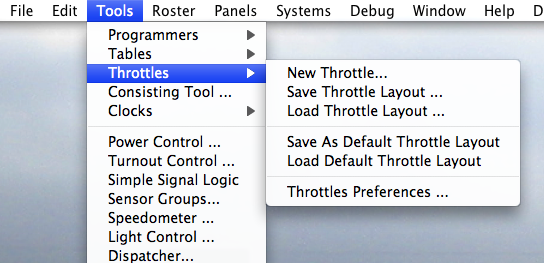
New Throttle...
Create a
new Throttle window with one empty and
available Throttle inside.
Save Throttle Layout...
Save current Throttles windows layout, inner Throttles as well, and Throttle List window
properties.
Load Throttle Layout...
Load a throttles windows layout, as defined above.
Will also load Throttle Layouts from older versions of JMRI (<2.7.9).
Save As Default Throttle Layout
Save current throttle layout as <JMRI Preferences
folder>/throttleJMRI_ThrottlePreference.xml
Load Default Throttle Layout
Load <JMRI Preferences folder>/throttleJMRI_ThrottlePreference.xml if it exists.
Merging Throttle Windows
Throttle layout files can consist of a single Throttle pane (to control a single
Locomotive or consist address), or may contain multiple Throttle panes. In either case, when
opening a Throttle Layout file, JMRI will check to see if any existing active Throttle panes
are already open. If none are found, then the file is opened just like a simple layout
opening (explained above).
However, when one or more Throttle panes are already open on the screen, the program will
open up the following dialog box:
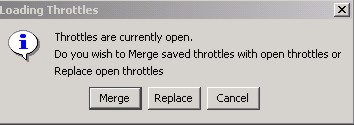
Figure 4-5: Merge Dialog Box
with 3 buttons:
- Merge - leaves the currently active open Throttle panes in place and
in addition opens the Throttle(s) contained in the chosen layout file.
- Replace - closes the currently active open Throttle pane(s) and opens
up the Throttle pane(s) defined in the chosen layout file.
- Cancel - cancels the "Open" request and closes this dialog.
Note: Do not confuse the action that is occurring here with any attempts
to overwrite your saved throttle layout files. The above actions have no effect on the actual
saved throttle layout files themselves. The only "merging" and "replacing" that occurs is
simply on your screen.
Throttles Preferences...
Open the
Throttles Preferences pane.
