
This document describes the JMRI Dispatcher tools, and how they can help
with dispatching and running trains on layouts with PanelPro panels.
The text is divided into sections. Underlined items in the table of contents link to sections
of this document or to other help files.
The requirement to select a Layout Editor panel in Dispatcher Options has been removed. All Layout Editor panels are now used for layout connectivity when running auto trains.
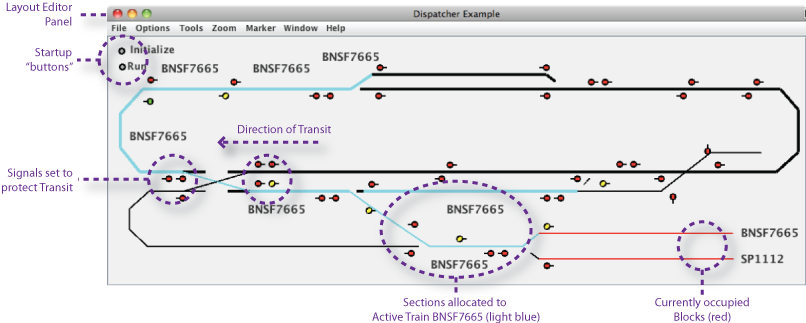
JMRI Dispatcher provides functions and organizes information relating to dispatching trains on a model railroad layout. Its main function is the allocation of sections of track to various trains running around the layout. Dispatcher is not designed to completely replace a human dispatcher during a session of running trains, but it should make the dispatching job easier and more fun. Dispatcher is envisioned to work alongside a Panel, constructed in either Layout Editor or Panel Editor, which provides visual feedback of layout status. An example of a Dispatcher Panel in action is shown next. No attempt was made to make Dispatcher look or feel prototypical. It was simply designed to be functional for dispatching a model railroad layout.
Note that in this document "Dispatcher" refers to the JMRI Dispatcher software,
and "the dispatcher" refers to the person running the Dispatcher software.
Many of the terms in this introduction to Dispatcher may be new to users. Some terms and
settings were created specifically for use with Dispatcher. Please review the
Glossary of Terms, and come back to it as needed
when reading the remainder of this documentation.
Functionality provided by Dispatcher includes:
Central to Dispatcher is the concept of an Active Train,
which carries the information needed to run a train around part of the layout.
Basically, an Active Train is created by the dispatcher by linking a
Transit and a Train. The Transit provides a description of the
itinerary to be followed by the Train, including which Sections need to be allocated in
sequence along the route, and, when running automatically, any Actions that need to be initiated in
specific Sections.
The Train specifies what is to be run along the route defined in the
Transit. Trains can be complete descriptions of all engines and cars as provided by JMRI
Operations, or engines selected from the JMRI Roster menu,
or simply a train name and dcc address entered by the dispatcher.
When creating an Active Train, the dispatcher also specifies where the Active Train is currently located, and the location of the Active Train when it is terminated after it completes its transit of the layout. Other options are entered, like train Priority and Type, a request to start the Active Train at a specified Fast Clock time, and a request to run it Automatically.
All Active Trains are displayed in a table in the The Dispatcher Window, along with status information about the Active Train. The Dispatcher Window also contains a table of pending Requested Allocations, a table of currently Allocated Sections, and buttons that allow the dispatcher to easily allocate Sections, create new Active Trains, and terminate Active Trains. Allocated Sections are released using buttons in the Allocated Sections table, or automatically if the Auto Release option is selected. The Dispatcher Window is discussed in detail below.
Note: The current version of Dispatcher contains an automated allocation option still under development. To request Dispatcher to attempt to automatically allocate Sections to Active Trains, select the Auto Allocate box. Auto Allocate (discussed in detail below) works fine for single Active Trains, and for some cases of multiple Active Trains. Enhancements are planned in future releases.
Dispatcher requires that a layout be divided into Blocks, and that Blocks
along the mainline be organized into Sections.
It also requires that these Sections be used to define itineraries, called Transits, that describe paths that
trains will follow when active on the layout.

Blocks are portions of track whose occupancy can be monitored individually. Sections are groups of one or more Blocks that are allocated as a unit by the dispatcher using Dispatcher functions. Blocks are usually defined to support signaling on a layout. Simplest use of Dispatcher does not require that block detection hardware or signals be installed on the physical layout, or even that the physical layout be divided into blocks. Dispatcher will work if layout blocking is defined in a panel only. However, Dispatcher works best if hardware blocks with block detection are present. It works even better if hardware signals are present on the layout, and signal logic uses Section direction sensors.
When a Transit is paired with a Train to form an Active Train, the starting Block (Active Train location at start) and ending Block (Active Train location when the travel is complete) are specified. The Active Train is referred to by its Train name and its Transit name, each of which must be unique among Active Trains. A Train and a Transit may be in only one Active Train at a time. When an Active Train is terminated, its Transit and its Train are deactivated, and both may be reused in different Active Trains.
Either an Active Train starts from a Block outside of the Transit, but connected to a Block within the Transit, or an Active Train starts from any Block within a Section in the Transit. When an Active Train starts, it moves through a Transit in one direction (FORWARD)--defined by the order in which Sections are included in the Transit. Trains move from lower sequence number Sections toward higher sequence number Sections. To facilitate back and forth running, an option is available for an active train to reverse itself upon reaching the end of its Transit, and back up through the Transit to the first Section of the Transit. To facilitate continuous running of an Active Train, and option is available to automatically restart the Active Train after the Transit is completed.
When an Active Train is created, an Allocation Request is placed for a starting Section. If the Section is free, the Section will be allocated to the Active Train. Allocation means that the Section is assigned to the Active Train, and the Active Train is authorized by the dispatcher to proceed to the end of that Section.
An Active Train may be run by an engineer using a throttle, or automatically by the computer. Dispatching for the Active Train consists of allocating Sections, one by one, to the Active Train, and holding the Active Train in a Section when its needs conflict with the needs of other Active Trains. The actual allocation may be done by the dispatcher by manually clicking buttons in the Dispatcher Window, or the dispatcher may request Auto Allocate by checking Auto Allocate above the Allocated Sections table or by selecting it in the Options menu of the Dispatcher window, and allow the computer do some of the routine work. If a requested Section is currently in use, an Allocation Request is placed in the Requested Allocations table in the Dispatcher window.
For Auto Active Trains (Active Trains run automatically), Transits provide for Actions to be initiated when a train is in a Section of the Transit. Actions are set up when Transits are created or edited in the Transit Table.
The Dispatcher window is opened when Dispatcher... is selected in the JMRI Tools menu.
It displays a table of Active Trains and their status, a table of pending Requested Allocations, and a table of Allocated Sections. It provides buttons that allow the dispatcher to easily allocate Sections, create new Active Trains, terminate Active trains, etc. The Dispatcher window buttons are discussed below. The Active Trains table and the Requested Allocations table are discussed in the following paragraphs.
The sequence of columns in each table can be changed by dragging the column header. The visibility of individual columns can be changed by using the right click context menu and clicking on the column name. The ID columns have been hidden in the images to reduce clutter.
A typical Active Trains window early in a train running session might look like this:
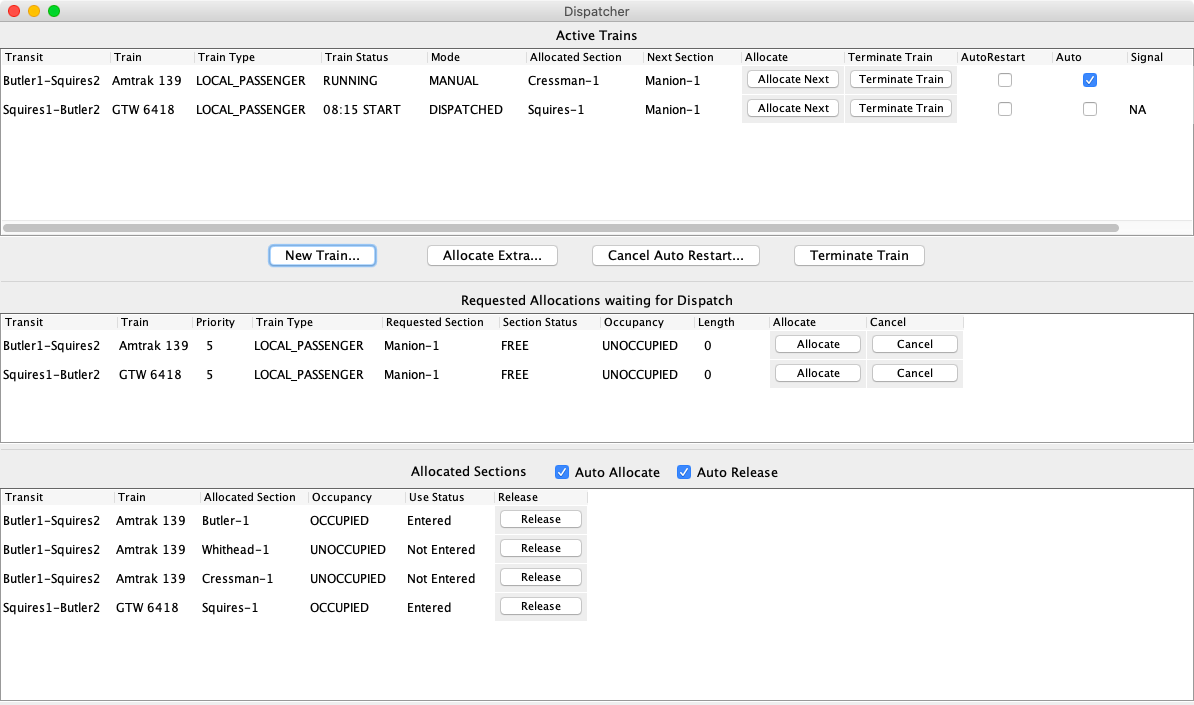
In the example above, two Active Trains have been created:
Allocation Requests have been entered for the next Sections needed by the two Active Trains. The requested Sections are FREE and UNOCCUPIED, so the dispatcher could allocate either of them by clicking the Allocate button in the Requested Allocations table or the Allocate Next button in the Active Trains table. Allocating a Section to GTW 6418 would require the dispatcher override its scheduled start time. The Sections currently allocated to the two Trains are shown in the Allocated Sections table.
The four buttons below the Active Trains table are described below:
New Train... - Click this button to bring up an Activate New Train window that allows the dispatcher to create an Active Train. The Train source used by this window is set in Dispatcher Options. More information on creating new Active Trains may be found in the help file for the Activate New Train window, along with a simple procedure to follow when creating an Active Train. Dispatcher Options should not be changed with the Activate New Train window open.
Allocate Extra... - Click this button to bring up a pane that allows the dispatcher to allocate Sections to an Active Train that may not be the "next" Section in the Active Train's Transit. Any Section that is FREE and is connected to an Allocated Section of the Active Train may be allocated to the Active Train using this pane. More information and a simple procedure for allocating extra Sections may be found in the Allocate Extra help.
Cancel Auto Restart... - Click this button to cancel Auto Restart of an Active Train. This button provides the dispatcher with a way to stop trains that have been set up for continuous running. If there is only one Active Train that is set up for continuous running, Auto Restart is turned off for that Active Train when this button is pressed. If there is more than one Active Train set up for Auto Restart, a small window appears to allow the dispatcher to select which Active Train should no longer Auto Restart when completing its transit through the layout. To avoid possible conflicts, this button is not active when the Activate New Train window is open.
Terminate Train - Click this button to terminate an Active Train. If there's more than one Active Train, a dialog pane appears to allow the selection of which Active Train the dispatcher wants to terminate. When an Active Train is terminated, all Sections allocated to it are automatically released. The Train and Transit are freed up to be used in other Active Trains as needed.
An Active Train is usually terminated when it reaches its destination Block, however, it may be terminated at any point during its transit of the layout. The dispatcher is responsible for deciding whether it is appropriate to terminate an Active Train before it reaches its destination.
Dispatcher options allow tailoring of the dispatcher function. The pane to set these options is accessed via the Dispatcher window's Options menu. Descriptions of items available in the Dispatcher Options pane, and of the Options menu, are contained in the Dispatcher Options help.
The Active Trains table from the above Dispatcher example is repeated below.

Each row of the Active Trains table corresponds to one Active Train. The columns are as follows:
Transit ID - The system name of the Transit of the Active Train is shown.
Transit - The user name of the Transit of the Active Train is shown.
Train - The name of the Train of the Active Train is shown.
Train Type - The train type selected when the Active Train was set up is shown. Allowed types are:
Train Status - Active Train status is displayed here. An Active Train may have any one of the following statuses:
Note: Some Active Trains will not use all the above statuses.
Mode - Mode of operation of the Active Train is displayed. The following modes are allowed:
Allocated Section ID - Displays the system name of the Section of the Transit that was last allocated to this Active Train.
Allocated Section - Displays the user name of the Section of the Transit that was last allocated to this Active Train.
Next Section ID - Displays the system name of the Section of the Transit that will need to be allocated next.
Next Section - Displays the user name of the Section of the Transit that will need to be allocated next.
Allocate Next Button - Click this button to request that the Section shown in the Next Allocation column be allocated to this Active Train. If the Section is FREE and not occupied it will be allocated immediately, and the Sections in the Allocated Section and Next Section columns will be updated.
If the Section is not FREE, an Allocation Request will be entered into the Requested Allocations table (see below). If the Section is FREE, but is OCCUPIED, the dispatcher will be queried. The dispatcher is responsible for deciding whether an OCCUPIED Section should be allocated. If the Next Section is the first Section to be allocated, and the Active Train is occupying that Section, Dispatcher knows that allocating the OCCUPIED Section is appropriate, so the dispatcher is not queried.
Terminate Train Button - Terminate the train and release its resources.
AutoRestart - Enable or Disable automatic restart.
Auto - Checked if the train was defined as an automatic train. The value cannot be changed.
Signal ID - Displays the system name of the next signal.
Signal - Displays the user name of the next signal.
The Requested Allocations Table from the above example Dispatcher window is shown below.

This table, headed Requested Allocations waiting for Dispatch, displays pending Allocation Requests. Each row corresponds to one Allocation Request. The columns are:
Transit ID - The transit system name.
Transit - The transit user name.
Train - Shows the Active Train requesting the Section. Active Train names are displayed in either short form (shown above) or long form depending on the option selected in the Dispatcher's Options window.
Priority - Shows the priority of the Active Train requesting the Section. Larger numbers are higher priority. If two Active Trains are requesting the same Section, the higher priority Active Train would normally take precedence.
Train Type - The train type selected when the Active Train was set up is shown. Allowed types are:
Requested Section ID - Shows the system name of the requested Section.
Requested Section - Shows the user name of the requested Section.
Section Status - Shows the allocation status of the requested Section. The Section will be either:
Occupancy - Shows the occupancy of the requested Section. Three entries are possible:
Length - The length of the requested Section in either scale feet or scale meters depending upon the units choice set in Dispatcher Options. The Section length is calculated from the lengths of its Blocks as entered in the Block Table accessed from the Tools -> Tables JMRI submenu. Section length is important for stopping trains run in AUTOMATIC mode.
Allocate Button - Click this button to request immediate allocation of the Section to the requesting Active Train. If the Section is FREE, and if the Section occupancy is either UNOCCUPIED or UNKNOWN, the Section will be allocated to the requesting Active Train. If the Section is FREE, but the Section is OCCUPIED, the dispatcher is prompted to either override the occupancy or wait.
If the Section is ALLOCATED to another Active Train, the button click will be ignored. A Section may be allocated to only one Active Train at a time. If an ALLOCATED Section needs to be reallocated to a different Active Train, it must first be released. (See the Allocated Sections help for instruction on releasing Allocated Sections.)
If "Use connectivity..." is checked in Dispatcher Options,
Dispatcher will check that turnouts are set correctly before actually allocating a
Section. If turnouts are not set correctly, Dispatcher will attempt to set the turnouts
if Auto Set Turnouts is checked in the Options menu (or
checked in the Dispatcher Options window). If turnouts are not set
correctly, the dispatcher is warned and given the option of overriding the turnout check
and proceeding with allocation of the Section.
For more information see Dispatcher
Options.
Cancel Button - Click this button to delete the Allocation Request without allocating the requested Section.
The Allocated Sections table displays all Sections currently allocated to Active Trains. This table serves two purposes:
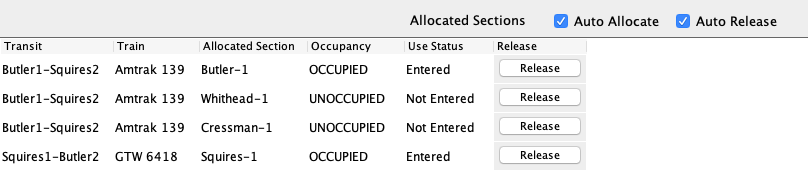
The table columns are as follows:
Transit ID - The transit system name.
Transit - The transit user name.
Train - Shows the Active Train to which the Section is assigned. Active Train names are displayed in either short form (shown above) or long form depending on the option selected in the Dispatcher's Options window.
Allocated Section ID - Shows the system name of the Section allocated to the Active Train on the left.
Allocated Section - Shows the user name of the Section allocated to the Active Train on the left.
Occupancy - Displays whether the Allocated Section is OCCUPIED by a train, or UNOCCUPIED. The Occupancy column is updated whenever the occupancy of the Allocated Section changes. If the user has not specified that the layout has occupancy detection in the Dispatcher's Options window, Occupancy for all Sections will be displayed as UNKNOWN.
Use Status - Displays whether the Allocated Section has been used by its train. The Use Status column shows either Not Entered, Entered, or Exited. The Use Status of the Allocated Section changes as the occupancy of the Allocated Section changes. An Active Train is assumed to be done with an Allocated Section if its Use Status is Exited. The Auto Release option looks for Allocated Sections that have an Exited Use Status. If the user has not specified that the layout has occupancy detection in the Dispatcher's Options window, Use Status will not display correctly.
The last column displays a Release button for each Allocated Section. If the Release button is clicked, that Section is immediately released. Section status becomes FREE, and the Section is available for allocation to an Active Train.
The Auto Allocate check box, immediately above the Allocated Sections table, is used to switch on (checked) or off (unchecked) the automated allocation option. If Auto Allocate is off, the dispatcher is responsible for allocating all Sections using the Allocate button of the Allocation Request in the Requested Allocations table or the Allocate Next button of the Active Train in the Active Trains table (see above).
The Auto Allocate option works cautiously. It will never allocate an OCCUPIED Section. It will never override a fast clock start time. It will attempt to avoid gridlock by looking ahead to see if a requested Section will be needed by another Active Train that has started. When possible, it attempts to allocate three Sections ahead of the current position of the head of each Active Train.
The current version of Auto Allocate works fine for single Active Trains and for multiple Active Trains whose Transits don't overlap. It has limited support for simultaneous Active Trains that require the same Sections. Future versions will contain enhanced support for multiple Active Trains.
The Auto Release check box, immediately above the Allocated Sections table, is used to switch on (checked) or off (unchecked) the automated release option. If Auto Release is off, the dispatcher is responsible for releasing Allocated Sections using the Allocated Section's Release button (see above). If Auto Release is on, the program will automatically release Allocated Sections which are UNOCCUPIED, show a Use Status of Exited, and are next-in-line to be released. Auto Release will only release Allocated Sections in the order in which they were allocated. Auto Release will not release Sections allocated using the Allocate Extra... button. Extra Allocated Sections must be released manually by the dispatcher.
Often a Section should not be released if it is still OCCUPIED. When an Active Train is terminated, all of its Allocated Sections are automatically released, regardless of occupancy. Auto Release will not release an OCCUPIED Section automatically. Caution: The dispatcher is responsible for determining whether it is appropriate to release an OCCUPIED Section.
The dispatcher may turn Auto Release and Auto Allocate on and off at any time. Also the dispatcher may override the automatic allocation process by allocating a Section that the Auto Allocate option is refusing to allocate. Turning off Auto Allocate cancels any plans the option might be working on involving multiple Active Trains. Note: Auto Allocate and Auto Release require reliable block occupancy hardware to operate dependably.
Dispatcher supports running trains around the layout automatically, provided the layout meets minimum requirements. Once an automatic Active Train (called an Auto Active Train) is created, it is run automatically by a virtual engineer using a computer throttle. The Auto Active Train follows signals around the layout, and performs user-specified Actions, separate from Dispatcher. When an Active Train is created by the dispatcher, automatic running may be requested in the Activate New Train window, and options specific to the Auto Active Train are set at that time.
The dispatcher allocates Sections to an Auto Active Train in the same manner as allocating Sections to an Active Train run manually by a human engineer. From the dispatcher point-of-view, Auto Active Trains are treated the same as manually run Active Trains. There are two exceptions to this:
When an Auto Active Train derails or otherwise misbehaves, the dispatcher may need to take over control of that Auto Active Train from the virtual engineer to correct the problem. When the first Auto Active Train is created, an Auto Trains window is created to the right of the Dispatcher window. This window has an entry for each Auto Active Train currently active on the layout. Functions in each entry allow the dispatcher to easily take over control of an Auto Active Train, to operate it as required to correct the malfunction, and to resume automatic operation once the problem is fixed.
One of the user-specified Actions is Go to Manual Mode. This Action supports running an Auto Active Train automatically to a work site, where a human engineer takes over to preform operations (perhaps switching cars), after which automatic running is continued following the same Transit. After the human engineer has completed work, the human engineer informs the dispatcher that automatic operation may be resumed. The dispatcher resumes automatic operation using a button in the Auto Active Train's entry in the AutoTrains pane.
since 4.3.7Support is provided for RAMPING the speed of an Auto Active Train when changing from its current speed to a new speed. This option is controlled by selecting a Ramp Rate for each Auto Active Train when it is created. The best Ramp Rate for an Auto Active Train depends upon that train's locomotive engine, the type of decoder, and settings of the decoder CV's. Available Ramp Rates are:
RAMP_NONE - Ramping is turned off. When a speed change occurs, the new speed is immediately sent to the decoder. Some decoders have features that can change speed gradually (this decoder option is named differently for different decoders). If the decoder is doing the desired job, select RAMP_NONE.
RAMP_FAST - Change to new speed in steps, but quickly. This is probably appropriate for most decoders.
RAMP_MEDIUM - Changes to new speed in steps about twice as slow as RAMP_FAST.
RAMP_MED_SLOW - Changes to new speed in steps about three times slower than RAMP_FAST.
RAMP_SLOW - Changes to new speed in steps about four times slower than RAMP_FAST. Too slow for almost all decoders.
Note: Overall ramping rates can be adjusted in Dispatcher Options.
since 5.15.4An advanced feature has been added to Dispatcher which controls auto trains based on the physical characteristics of a prototype locomotive. This is controlled by the Physics ramp setting and related roster changes. See New Train for the new Dispatcher settings and Locomotive Data for the roster related changes.
When traversing the layout, an Auto Active Train changes speed in response to the signals it passes. If the next signal it faces is dark, red or flashing red, the train will stop in the current Section (see below). If the facing signal is green or flashing green, the train will run at its maximum allowed speed. If the facing signal is yellow or flashing yellow, the train will run at a reduced speed of 35% of the allowable speed range.
If using SignalMasts, the speed between two SignalMasts is set to the lesser of the SignalMast indicated speed vs. the Block and Turnout speed for that path. This allows you to specify maximum speeds for specific trackage.
When an Auto Active Train is created, a default maximum allowed speed is specified as a fraction of the allowable speed range. Each new speed value is compared to the maximum allowed speed, and reduced if necessary. This allows different Auto Active Trains to run at maximum speeds appropriate to the type of train, regardless of the speed capability of its locomotive. The maximum allowed speed may be changed while running by using the Set Maximum Speed Action. This provides for slowing down or speeding up at specified locations in the Transit, for example, when passing through a town.
Since all locomotives do not run the same, when an Auto Active Train is created, a Loco Speed Compensation in the range of 50 to 150% is specified. This Compensation factor multiplies all speed values immediately before the speed is sent to the throttle (after the speed has been tested against the maximum allowed speed). For "normally" running locomotives, a speed factor of 100% is appropriate. For locomotives that run slower than "normal", use a factor greater than 100% and for trains that run faster than "normal", a factor less than 100% is best.
Three different methods are provided currently for stopping an Auto Active Train when it
needs to stop. If the Section has hardware stop Sensors, the train is halted when it reaches
the Stop Sensor for its direction of travel. If no Stop Sensors are available for the
Section, the train length is compared to the length of the Section to determine if the Auto
Active Train will fit in the Section. If the Auto Active Train will fit in the Section, and
if all cars of the train are detectable, the Auto Active Train is stopped when it exits the
Section previous to the current Section. If neither of the two methods apply, the train is
stopped when it enters the Section.
Stopping using a Stop Sensor is the most precise way to stop an Auto Active Train at a
specific location. Stop Sensors need not be in place for all Sections, but their use for
automatic station stops and passing tracks is strongly recommended.
For the second stopping method to work, train length must be entered, lengths of all Blocks
in the Transit must be present in the Block Table, and the train must be fully detectable
(this usually means all cars must have resistance wheels on one or more trucks). Block
lengths should not include the turnouts at the ends of the Section, or portions of a Section
not normally traversed by the Auto Active Train.
Automatic running of Active Trains requires the layout and the train have required hardware and that one or more fully configured Layout Editor panels be present to provide layout connectivity information. Some of the automatic running requirements are strongly recommended for manual running also. Requirements include:
The layout must have a DCC command station that supports JMRI computer throttles.
The layout must be divided into Blocks, and each Block along the mainline must have occupancy detection hardware, providing occupancy Sensors to JMRI.
Turnouts (track switches) along the mainline must be switchable by the computer. It is recommended that turnouts have feedback, but feedback is not required. Automatic running of trains requires that the computer set turnouts for travel along the Transit as Sections are allocated. Automatic setting of turnouts is available as an option when running manually.
Blocks, turnouts, and signals must be configured on one or more Layout Editor panels that fully describes the connectivity of the layout. The Layout Editor panels need not be displayed, but must show up in the submenu of Panels/Show Panel. If multiple Layout Editor panels are present, Dispatcher will use the combined connectivity. This works best when panels are connected using edge connectors. The Layout Editor panels act as a connectivity database, supplying connectivity information as needed to Dispatcher or the Auto Active Train's virtual engineer.
Auto Active Trains follow signals, requiring signals as part of the Layout Editor panels. Hardware signals on the layout need not be physically present, but signals and signal logic (Either SignalHeads & SSL or SignalMasts & SML) must be configured in the Layout Editor panels, and must be connected to the track at the proper block transition points.
Sections and Transits must be set up for the layout. This is also required for manual running of Active Trains. Sections must be configured so that Sections interconnect only once in each direction. This impacts the way Blocks are set up.
All entry points and exit points from Sections in the Transit must have signals on the Layout Editor panels. If Using Signal Heads/SSL then boundaries between Blocks in Sections should be signaled on the Layout Editor panels. Portions of the layout that are not in Sections in Transits only need those signals that are necessary to allow setup of signal logic, either SSL (Simple Signal Logic) or SML (Signal Mast Logic) for signals in Sections of the Transit. since 3.3.5 Use of the Layout Editor tools to configure signals on the Layout Editor panels is required (this is how Layout Editor knows which signals apply to which turnout, block boundary, etc.). Use of these tools to set up signal logic is strongly recommended. When checking for direction sensors in signal logic, Dispatcher looks in the SSL of each signal head (see below). If signal logic is set up without use of the Layout Editor tools, make sure each SSL or SML is configured correctly.
(SSL Only) All Sections must be configured with direction Sensors. When an Auto Active Train is created, Dispatcher will check that direction Sensors are present and are configured in signal logic of signals in all Sections of the Transit. Dispatcher will place direction Sensors in signal logic if they are not found. Note: Direction Sensors may be cleared from signal logic using a tool in the Section Table when not running automatic trains.
The lengths of Blocks on the physical layout should be entered in the Block Table to facilitate stopping Auto Active Trains.
Hardware stop sensors are not required in Sections, however, hardware stop sensors are strongly recommended in Sections where accurate stopping locations are desired.
Resistance wheels on all cars of an Auto Active Train are not required unless Auto Allocate and/or Auto Release are being used (applies to both manual and automatic running of trains). Resistance wheels on all cars are highly recommended for all Auto Active Trains. If they are not present, the virtual engineer has no way of knowing when the last car has exited a Block. Without the train being fully detectable along its entire length, the Auto Active Train will not stop at acceptable locations, and waiting trains may allocate and set turnouts before the undetectable train has passed.
Even if the above requirements are met, automatic running will not be successful unless the layout and the rolling stock are in very good condition. The track must be clean, and the wheels of automatically running trains must be very clean, allowing good block detection. Locomotives must run smoothly, especially at slower speeds. Derailing problems must have been solved. A train should run flawlessly in manual mode, before automatic running is attempted.
Because Auto Active Trains use JMRI signaling for stops, starts and speeds, the signaling should also be flawless, including all blocks, turnouts and direction indicators needed.