
The Dispatcher Options pane provides for tailoring Dispatcher according to user needs and preferences. The Options menu provides access to these options and to another choice for saving Dispatcher Options to disk for later use. Both are described below.
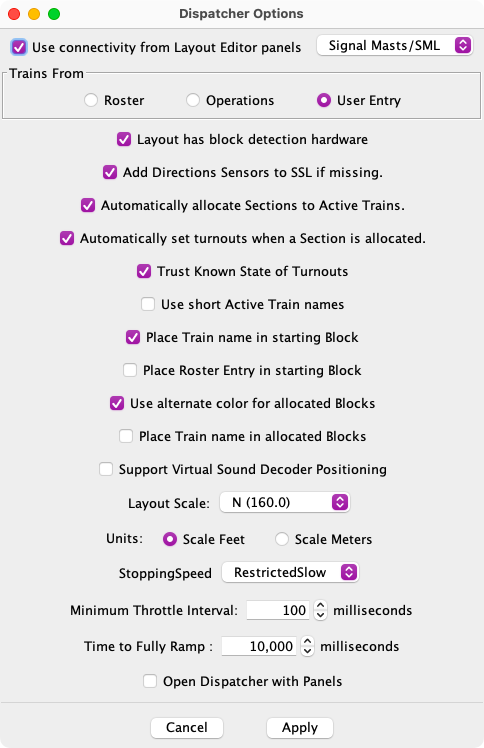
Selecting Dispatcher Options... in the Options menu of the Dispatcher window brings up the pane shown at right.
This window shows options currently set for Dispatcher. To change Dispatcher Options,
change to the desired option configuration, and click the Apply button. All
options are set to the selections in the Dispatcher Options pane, and the pane disappears. To
close this pane without changing any options, click Cancel.
The available options are:
Check Use connectivity from Layout Editor panels if you have one or more Layout Editor panels that fully describe your layout, including blocks and turnouts, and would like Dispatcher to make use of this connectivity. Uncheck this item if no Layout Editor panels with connectivity are available. If this item is checked, Dispatcher will automatically check if turnouts are set correctly when allocating a Section, and will inform the dispatcher if the turnouts are not set correctly. This item must be checked if Dispatcher is to set turnouts when a Section is allocated (see below), and if trains are to be run automatically.
Select the type of Signaling control that is used on the panels from the drop down:
Select one of these three options for Dispatcher to select Trains from when creating Active Trains:
Check Layout has block detection hardware if block occupancy detection is available from the layout. Uncheck if the layout does not have block occupancy detection, or if Dispatcher should not make use of block occupancy detection. Block detection hardware is required for automatic running of trains.
Check Automatically allocate Sections to Active Trains to activate automated allocation. Uncheck to deactivate automated allocation. This item is equivalent to the Auto Allocate option check box in Dispatcher's window above the Allocated Sections table. It is also equivalent to Auto Allocate in Dispatcher's Options menu. Checking it here, then saving Dispatcher Options (see below) will select Auto Allocate and Auto Release when Dispatcher is started. Note: The current version of Dispatcher provides limited support for automated allocation of Sections. Support will be enhanced in future versions.
Check Automatically set turnouts when a Section is allocated to
activate automatic setting of turnouts. Uncheck to deactivate automatic setting of
turnouts. This item is equivalent to Auto Set Turnouts in Dispatcher's
Options menu. This item requires that Use connectivity from
Layout Editor panel be checked (see above). Turnouts will not be set unless the
Section to be allocated is free and unoccupied, except for the first Section of an Active
Train that starts in the Transit. If turnouts cannot be set, the dispatcher will be
warned. When setting turnouts, Dispatcher only issues commands to set turnouts; it does
not wait for turnouts to actually change. This item is required for automatic running of
trains.
Note that signals dependent on those turnouts will not change until the turnout is
changed, so Dispatcher may (indirectly) wait for turnouts to align.
Check Trust Known State of Turnouts? to suppress sending of turnout commands if the known state already matches the desired state. This can be used where reliable turnout feedback is in place.
Check Use short Active Train names to use the train name as the Active Train name in tables and selection boxes where Active Trains are referenced. Uncheck to use the full Active Train name in those locations.
Check Place train name in starting Block to request that Dispatcher set the "value" of the starting Block to the train name when creating a new Active Train. Uncheck to suppress setting the starting Block value to the train name. This feature is designed to facilitate Train Tracking in Layout Editor panels.
Check Place Roster Entry in starting Block to request that Dispatcher set the "value" of the starting Block to the roster entry when creating a new Active Train. Uncheck to suppress setting the starting Block value to the roster entry. This feature is designed to facilitate Train Tracking in Layout Editor panels.
Check Use alternate color for allocated Blocks to use the Layout Editor alternate unoccupied color for allocated Blocks in Layout Editor panels. This option is designed to make it easier for the dispatcher to see which Sections have been allocated.
Check Place train name in allocated Blocks to place the name of the Active Train to which a Section is allocated as the value of Blocks of the Allocated Section. This feature, coupled with the above alternate color option, makes it easy for the dispatcher to see which Allocated Section is allocated to which Active Train when viewing a Layout Editor panel.
Check Support Virtual Sound Decoder Positioning to help position train sounds when using Virtual Sound Decoders.
Select layout scale in the Layout Scale selection box. The selected scale is used to convert Block length as used in automatic running of trains.
Select the preferred Units, either Scale Feet or Scale Meters for referencing train length and block length in Dispatcher.
Select the preferred Stopping Speed. This will be the speed to stop a train when the previous block becomes unoccupied.
Minimum Throttle Interval is used to manage throttle traffic, by sending throttle commands no more often than this value. Increasing this value reduces traffic on your DCC bus, but will affect "smoothness" of speed changes.
Time to Fully Ramp is used to calculate the Ramping values. Specifically, it is how long (in milliseconds) it would take to go from 0% to 100%. Increasing this value causes ramping operations to take longer.
Check the Open Dispatcher with Panel to open up the Dispatcher window when the panel file is loaded. Please note that this option is saved when the panel file itself and is saved and not when the "Save Options" is selected.
Important Note: Remember to save your Options (see below). If new Dispatcher Options are not saved, they revert to the previous values the next time Dispatcher is run.
The Options menu is used to access, edit, and save Dispatcher options. Items in this menu and their use are explained below:
Auto Allocate - This check box is used to turn automated allocation functions on (checked) or off (unchecked). This item is equivalent to the Auto Allocate option check box in Dispatcher's window above the Allocated Sections table. It is also is equivalent to an item in the Options Window. Automated dispatching may be turned on or off at any time. The item is repeated here for convenience of the dispatcher. Note: Automated allocation of Sections has limited support in the current version of Dispatcher.
Auto Set Turnouts - This check box is used to turn on (checked) or off (unchecked) automatic setting of turnouts when Sections are allocated. This item is equivalent to an item in the Options Window. Automatic setting of turnouts may be turned on or off at any time, except for automatically running Active Trains. The item is repeated here for the convenience of the dispatcher.
Options Window... - Selecting this item brings up the Options Window described above.
Save Options... - Selecting this item saves Dispatcher Options to disk.
To save the Dispatcher settings currently in effect into a small XML file (dispatcheroptions.xml) in the user's preferences directory, select Save Options... from the Options menu. This is the same location where JMRI preference files are saved. When Dispatcher is started, if a file named "dispatcheroptions.xml" is found in the user's preference directory, that file is read, and Dispatcher options are set accordingly. If the file is not present when Dispatcher is started, default options are used. Note: Dispatcher Options are not saved automatically. Saving Dispatcher Options is optional. Selecting this menu item is the only way to save Dispatcher Options.
Back to Dispatcher help.