
It can be set to start automatically with the "Start Up" section in the "JMRI Preferences".
Preferences for the WiFi throttles can be found in the JMRI Preferences under the heading WiThrottle.
This utility broadcasts its connection information across all local networks, so it can be picked up by any device looking for the service. This eliminates having to enter connection information into the device. If the computer running JMRI is protected by a software firewall, you may need to add an exception for JMRI or disable the firewall to allow the WiFi throttle to connect.
When using a WiFi throttle, if the computer enters sleep mode, control will be lost. System preferences may need to be adjusted to prevent the computer from putting itself to sleep when it is inactive.
You can use any of these devices via the same or a different (remote) network than the one that your JMRI computer is running on. See below for more information on remote use of mobile devices.
The WiThrottle protocol is described on a separate page. For more on JMRI networking, see the networking technical page.
| Name | Description | Apple | Android | Windows | Web |
|---|---|---|---|---|---|
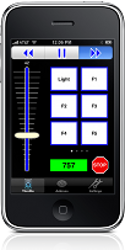
| WiThrottle | An easy-to-use interface to allow iPhone, iPad, and iPod touch users to link to JMRI roster and tables and also web pages. Will download function key labels stored in JMRI. Available in a free version (control a single locomotive) and a purchased version (control up to four locomotives at once). |
|
|||
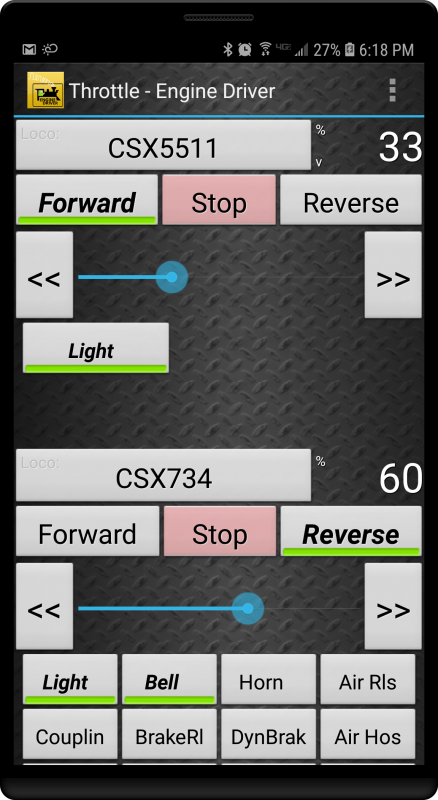
| EngineDriver | This free application can control your locomotives and your entire model railroad. Speed, direction, and up to 29 DCC functions are supported for one to six locomotives or consists. You can create and edit consists (software-defined). You can also control layout power, turnouts, routes, and access JMRI web panels and windows. |
|
|||
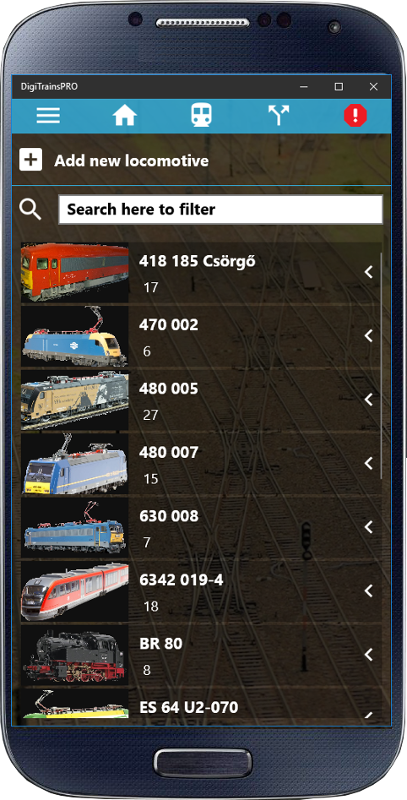
| DigiTrainsPro | NOTE: THIS WIFI THROTTLE DOES NOT USE JMRI's WiThrottle server, but rather communicates via JMRI's Web Server. YOU MUST START Web Server before using this app. You can then select the locomotive you want to control from the JMRI roster and other objects such as turnouts from JMRI tables. You can also use its builtin Dispatcher game and play station speaker announcements. With the Model Time function, trains can run on schedule! |
|
|
|
|
| Train Throttle | Train Throttle is a client for the JMRI WiThrottle server, which allows you to control your DCC equipped model trains. The current version of the software lets you control a single throttle, functions 0-28, as well as add multiple engines to the throttle, on the fly. |
|
|||
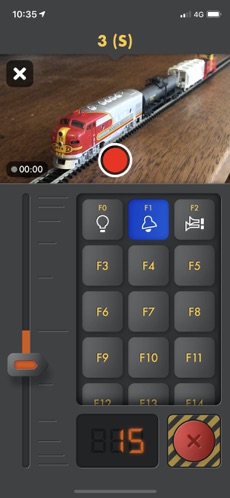
| Locontrol | An elegant controller for iOS. |
|
|||
| WebThrottle | NOTE: This WiFI Throttle uses JMRI's Web Server. YOU MUST START Web Server before using this app. Web control for locos, panels, turnouts and routes. Included in JMRI, nothing to install! |
|
The default is NMRA Format. This will build a consist using NMRA consisting commands. It does not use any techniques specific to the connected DCC system. This allows WiFi throttles to work in a DCC manufacturer independent way. These consists may perform better for building and controlling with WiFi devices.
The second option is DCC Brand-Specific which will build consists in a manner where they will function as though built using a throttle from the DCC manufacturer. This will follow manufacturer specific features as to how consists are built and controlled. These consists should perform better when built with a WiFi device, but controlled by a throttle from the DCC manufacturer of your system.
Typically, people using smartphones or tablets as throttles are physically in the same room as the layout they are controlling. Mobile device throttles, however, can be operated from anywhere in the world, significantly adding to the fun of model railroading by making it possible to share control of a layout with family or friends many miles away.
Setting up a mobile device throttle is straighforward, as discussed above. Apps such as the similarly named WiThrottle (for IOS devices) and EngineDriver (for Android devices) will either recognize that JMRI WiThrottle Server is transmitting or ask you to connect to the server manually by entering its IP address and port. The WiThrottle Server displays its broadcast IP address and port in the top section of the WiThrottle window. If you are using a typical home router, this will begin with 192 or 10 and consist of four parts, for example 192.168.0.103. This "internal" IP address will only be recognized by other devices connecting to the same local network.
Setting up for a remote mobile device throttle requires some additional steps. If the mobile device you are going to use as a throttle is connecting to a different network than your local network (as, for example, is obviously the case if the remote operator is in another city), that mobile device will have to be told the "external" or "public" address of your JMRI computer and a port number that will allow it to connect remotely to your JMRI computer. You can look up the public IP address for your local router either by logging into the router's administrative portal or using a browser on your JMRI computer to go to the web site WhatIsMyPublicIP.com or similar. You then have to create a link between that IP address and a port number to the internal IP address and port number of the JMRI WiThrottle Server. This is called "port forwarding" and needs to be set up on your local router. Setting up port forwarding varies with the model of router so we won't attempt to give specific instructions on how to do that. However, detailed instructions can usually be found on the internet and the topic has been addressed in the JMRI online forum as well.
Once you have determined the public address of your JMRI computer and set up port forwarding to the WiThrottle Server, you enter this information into the throttle app on your mobile device. You will know you have been successful when your mobile device's name appears in the WiThrottle Server window and your engine roster appears on your app.
TROUBLESHOOTING: if you get an error or your mobile device app doesn't appear to connect, check that you have the correct internal and public IP addresses (which may change from day to day due to the way your network router and internet service provider assign addresses), correct port number, and that you saved the port forwarding information to your router's memory.
Now all you have to do is provide a way for the remote engineer to talk with you and see your layout while he or she takes control of your JMRI-enabled layout via a mobile device throttle from anywhere in the world! [FYI: use FaceTime or Skype or some other video system that provides realtime communication for this purpose. It is generally not recommended to use remote monitoring cameras such as are used for baby monitoring or security cameras as most introduce a several second delay -- something that could lead to some very interesting railroad accidents!]