Warrants: The Warrant List
The Warrant List is a table of all Recorded Warrants. It also temporarily lists NX
Warrants during the time they are in effect. The Warrant List window is a dispatchers sheet
to run and control warranted trains.
You access the Warrant Table by selecting Warrant List from the Warrants
menu of your Control Panel. For an overview discussion of Warrants, see Warrants.
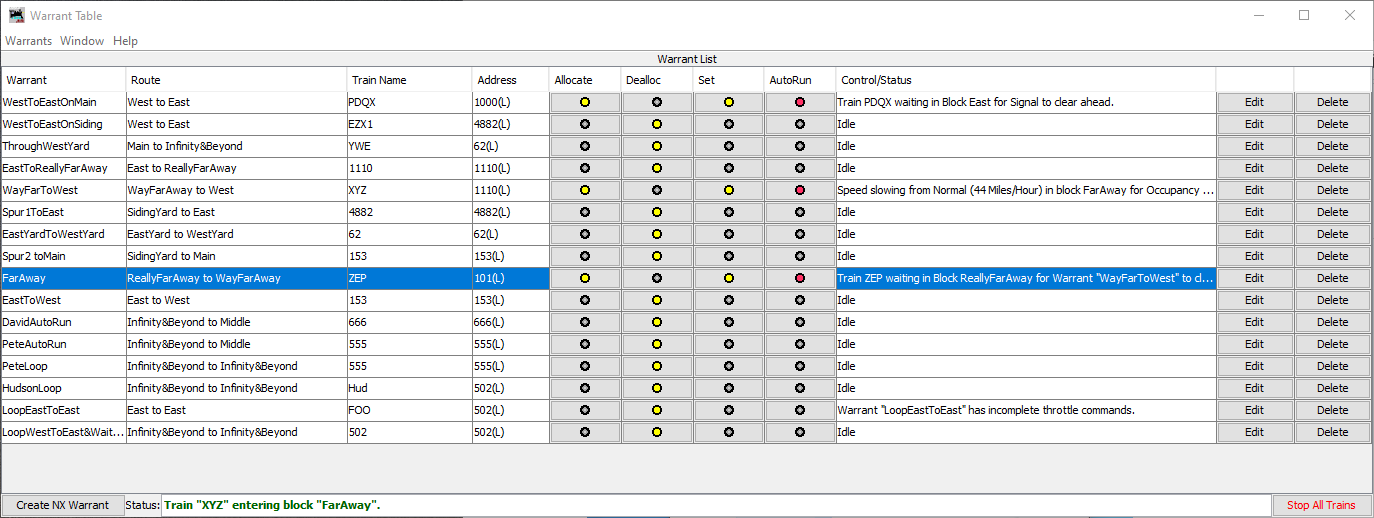
Columns in the Warrant Table
- Warrant - The name of the Warrant.
- Route - The route of the Warrant is listed in a drop down combo box by
clicking the table cell.
- Train Name - The Train Id, as stated in the Roster. This cell can be
edited and its content is displayed next to the Indicator Track Icons when the train
occupies their OBlock (the Edit popup of Indicator Track Icons have a checkbox to enable
this function).
- Roster ID/Address - The Roster Id or Address of the locomotive or Consist.
since 4.25.1
This cell can be edited to correspond to the current motive power of the Train. If the DCC
address is entered, the entry will show the corresponding Roster Id. If the address is not
found in the roster, the address is bracketed with the $ sign.
- Allocate - A button that reserves the route for the Warrant. The
Indicator Track Icons of the blocks of the route display green but the turnouts are not
disturbed.
- Deallocate - A button that removes the reservation for the
Warrant.
- Set - A button that allocates and sets the turnouts for the Warrant
route. The Indicator Track Icons of the route display green and the turnouts indicate the
paths taken in the block.
- AutoRun - A button that runs the train over the route according to the
throttle commands of the Warrant. The recorded speed of the train will be modified
according to the occupancy and signal aspects encountered on the route. The Indicator Track
Icons display the current position of the of the train with a blue color.
- ManRun - (hidden column) A button that allocates the Warrant and sets
the route for a manual operator to run the train. The script is not run, but the route is
displayed. of the train with a blue color.
(The default setting hides this column. To display it, right click the table header.)
-
Control/Status - The status of the Warrant is shown. It also has a drop
down combo box that can send commands to a running train.
Note: This column has two functions - Status messages and control
buttons.
When running, the Warrant will post a status message here; e.g. its current location and
speed, error messages, etc.
When clicked the following commands can be sent:
since 4.17.8
- Halt - Ramp the train down to throttle speed 0 and suspend
execution of the throttle command script
- Resume - Ramp the speed of the train up to its former setting and
restart the throttle command script. Should obstacles be ahead, the a warning is posted.
- Increase Speed - The throttle setting is increased by one Ramp Step
Throttle Increment (See Warrant Preferences).
- Stop - Set the throttle to 0% and suspend execution of the
throttle command script
- Move into Next Block - Repeats the test for whether a signal
aspect has changed or an occupied block ahead has cleared. If the train has overrun a
block where it is expected to be and now appears to be the obstacle preventing
movement, this resets its location. (Occasionally a sensor change can be missed due to
a short or other hardware malfunction. This reset may allow a stopped train to
continue.)
- Emergency Stop - Issue an emergency stop to the train and suspend
execution of the throttle command script.
- Abort - Abort the script and deallocate the Warrant.
-
Edit - A button that opens the window used for creating and editing
warrants. This window has several display modes. In this case, it is opened in the mode
where many of the warrants parameters can be edited while preserving its route. The
Creating and Editing Warrants help page has
information about editing a warrant.
- Delete - A button that deletes the Warrant.
Note: Warrants can only be created if the PanelPro configuration has at
least two OBlocks defined.
Click in the table header to select columns to be hidden or visible.
The Warrant List Menus
The following item are under the Warrants menu.
- Concatenate Warrants - Join two Warrants together to become a single
Warrant. The last block and path of the first Warrant must be equal to the first block and
path of the second Warrant.
-
Create New Warrant - Opens the window used for creating and editing
warrants. This window has several display modes. In this case, it is opened in the mode
to create a route for a new warrant. The Creating and
Editing Warrants help page has information about creating a warrant.
-
Train Trackers - Opens the Tracker Table window. The Train Trackers help page discusses how the movements of a train can
be displayed as they move from one occupancy block to another.
-
Create NX Warrant - Opens a window to create an eNtry/eXit Warrant. This
is discussed in the NX Warrants Help.
- Open Session Log - Opens a window to name a file that records the
Warrant and train tracking status messages to the file.
Other Warrant List Features
The following items are at the bottom of the window:
- The Create NX Warrant button Opens a window to create an NX (eNtry/eXit) Warrant.
- The Stop all Trains button causes all running Warrants to halt their
trains.
- The Status field contains the last 20 messages from Warrants. Click in
the field to display them.
Running Automated Trains
The throttle commands recorded in a Warrant are played back to run the train, but additional
control of the train can be done through the choices provided by the
Control/Status down down combobox. Note there are two ways to stop the
train:
Emergency Stop an immediate stop or
Halt that slows
the train to a stop smoothly. Once stopped, the
Resumecommand will restart
it, keeping the Warrant in effect.
Move into Next Block is "repair" command
should the train overrun a block and become "Lost". This command aligns the Warrant to the
next block and restarts the train. The
Abort command does an emergency stop
and annuls the Warrant.
There are separate operations in the Warrant List table to reserve a Warrant route; the
safer Allocate will not throw turnouts in blocks possibly occupied by trains
or the Set (allocate and set turnouts). These operations do not have to be
done before running an automated train. They are used to preview the route. An
AutoRun operation can begin without them. The train will seek allocation and
set turnouts as it proceeds on the route.
Automatic control of trains
Whenever a warranted train has permission to enter the next Block, the turnouts are reset to
the route. This will correct any inadvertent setting of turnouts by other operators. If a
warranted train does not have permission the enter a block, no turnouts for the route are
thrown in the block or in the blocks beyond it.
"Stop" aspects of Signals, detection of occupancy or allocation to another warrant will
deny permission for a warranted train to enter a block. Also, signals may prescribe speed
restrictions. Whenever the train enters a block or is given a control command the warrant
looks ahead for permission or speed restrictions. When this is detected, the warrant will
suspend the warrant's throttle commands and issue throttle commands it calculates to ramp the
train's speed smoothly to meet the required speed or stop just before entering the block.
When permission to enter a block is denied, a warranted train will not move. Clearing
these conditions causing the a denial is cleared, the train will proceed automatically. The
only thing that may override automatically proceeding is if the user has set the control to
"Halt". The train will not move until the user sets "Resume".
Note: In order for warranted trains to respond to signal aspects, the
Portals must be defined with Signal Heads or Signal Masts protecting the blocks they join,
the train will modify the speed according to the appearance or aspect of the signal. When Warrant Speeds Are Modified has details about how Warrants
modifyrecorded speeds.
When the Starting block is Unoccupied
If a Warrant is started and the starting block is not occupied, the Warrant will wait until
the block is occupied. When occupation occurs the Warrant will is set to to wait for
the user to use the "Resume" control to start the train. Note it is vital that the correct
train occupies the starting block. The address specified in the Warrant,
is the train that will begin moving.
Back to Warrants Help.
